> ## Documentation Index
> Fetch the complete documentation index at: https://docs.dynamic.xyz/docs/llms.txt
> Use this file to discover all available pages before exploring further.
# Flow: Building a Payment UI
> Build a multi-chain payment widget with Fireblocks Flow — wallet connection, token selection, quoting, signing, and status tracking.
This is an enterprise-only feature. Please [contact us](https://www.dynamic.xyz/book-a-call) to enable.
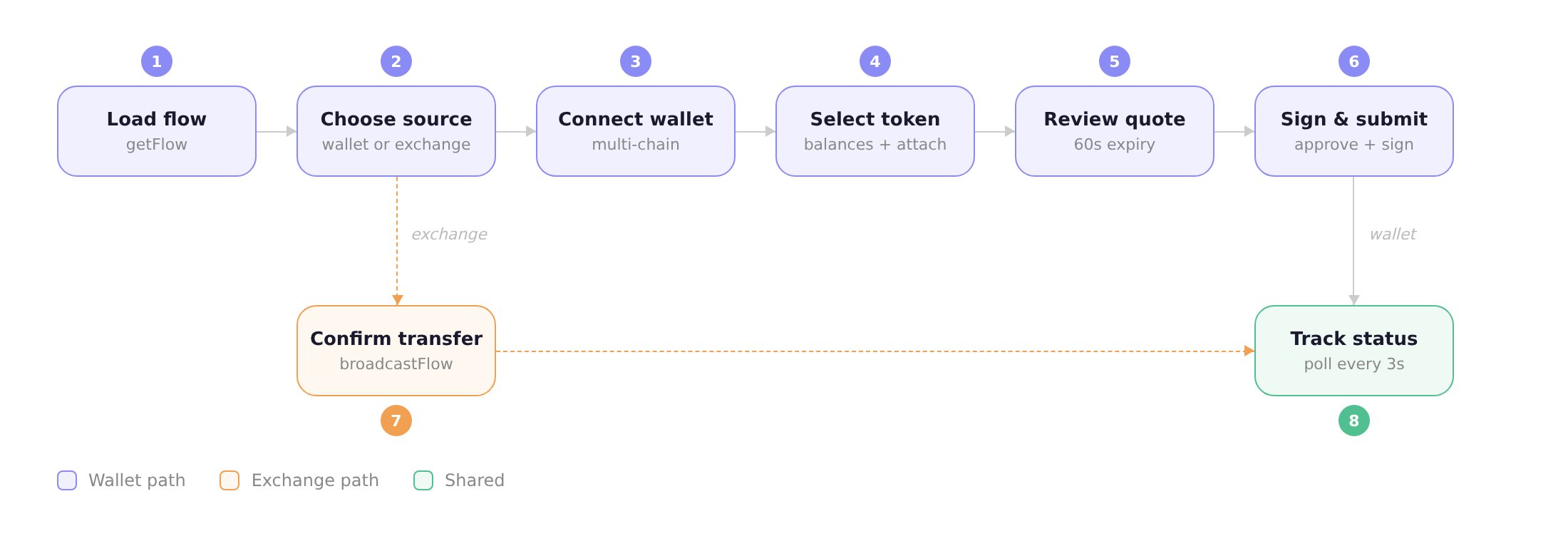
Build a payment UI on top of [Fireblocks Flow](/docs/overview/fireblocks-flow) using the JavaScript SDK. Each section maps to a screen in the payment widget, with full component examples you can adapt.
The examples below use React for readability, but the Dynamic JavaScript SDK is framework-agnostic. The core functions (`attachFlowSource`, `getFlowQuote`, `submitFlowTransaction`, etc.) are plain JavaScript imported from `@dynamic-labs-sdk/client` and work with any framework — Vue, Svelte, Angular, or vanilla JS. The React hooks (e.g. `useGetTokenBalances`, `useGetWalletAccounts`) are convenience wrappers from `@dynamic-labs-sdk/react-hooks`; in other frameworks, call the equivalent client functions directly.
Do **not** mix the Dynamic React SDK (`@dynamic-labs/sdk-react-core`) with the JavaScript SDK (`@dynamic-labs-sdk/client`). They are separate SDKs with different architectures. Fireblocks Flow is only available in the JavaScript SDK. If your project currently uses the React SDK, you will need to migrate to the JavaScript SDK to use Flow.
Complete the [Getting Started](/docs/javascript/reference/flow-getting-started) setup before following this guide.
## Flow overview
## 1. Load the flow
Your backend [creates the flow](/docs/javascript/reference/flow-getting-started#5-create-a-flow-from-your-backend) and passes the `flowId` to the frontend. Always load the current state before choosing a screen. Do not replay `attachFlowSource` or another mutation just because the page reloaded:
```javascript theme={"system"}
import { getFlow } from "@dynamic-labs-sdk/client";
const STATUS_ONLY_STATES = new Set(["broadcasted", "source_confirmed"]);
const NEW_FLOW_REQUIRED_STATES = new Set(["cancelled", "expired", "failed"]);
const flow = await getFlow({ flowId });
if (STATUS_ONLY_STATES.has(flow.executionState)) {
// Show the status screen and keep polling execution/settlement.
} else if (NEW_FLOW_REQUIRED_STATES.has(flow.executionState)) {
// Show the final state and offer to create a new flow.
} else {
// Resume the screen for initiated, source_attached, quoted, or signing.
}
```
Read `flowId` from a URL parameter (e.g. `?flowId=...`) so users can resume an in-progress flow after navigating away. Route by `executionState`; never route a `broadcasted` or `source_confirmed` flow back to source selection.
## 2. Choose a payment source
Flow supports two source types: **wallet** (user signs from a Web3 wallet) and **exchange** (user pays via an exchange like Coinbase). Present both options and route to the matching path.
```jsx theme={"system"}
const SelectSourceView = ({ onSelectWallet, onSelectExchange }) => (
Choose payment method
);
```
### Exchange path
For exchange sources, attach the source and open the exchange URL. After the user completes payment on the exchange, you call `broadcastFlow` to notify the backend (see [step 7](#7-confirm-exchange-transfer)).
```javascript theme={"system"}
import { attachFlowSource } from "@dynamic-labs-sdk/client";
const { flow } = await attachFlowSource({
flowId,
sourceType: "exchange",
exchangeProvider: "coinbase",
});
// The exchange buy URL is in the flow's exchangeSource metadata
const buyUrl = flow.exchangeSource?.metadata?.url;
window.open(buyUrl, "_blank", "noopener,noreferrer");
```
## 3. Connect a wallet
With multiple [chain extensions](/docs/javascript/reference/flow-getting-started#3-add-chain-extensions-to-the-client) enabled, the SDK detects wallet providers on every chain. The same wallet (e.g. MetaMask) may appear multiple times — once per supported chain. Group providers by `groupKey` so each wallet shows as one entry in your UI.
### Wallet provider list
Use `useGetAvailableWalletProvidersData` to list detected wallets, and `connectWithWalletProvider` to connect:
```jsx theme={"system"}
import {
useGetAvailableWalletProvidersData,
useConnectWithWalletProvider,
} from "@dynamic-labs-sdk/react-hooks";
const WalletProviderList = ({ onConnected }) => {
const { data: providers = [] } = useGetAvailableWalletProvidersData();
const { mutate: connectWithWalletProvider } = useConnectWithWalletProvider();
// Group providers by wallet (same wallet across chains = one entry)
const groups = {};
for (const p of providers) {
if (!groups[p.groupKey]) groups[p.groupKey] = [];
groups[p.groupKey].push(p);
}
const connect = (provider) => {
connectWithWalletProvider(
{ walletProviderKey: provider.key },
{ onSuccess: () => onConnected() },
);
};
const handleGroupClick = (groupKey) => {
const group = groups[groupKey];
if (group.length > 1) {
// Wallet supports multiple chains — show a chain picker (see below)
showChainPicker(group);
return;
}
// Single chain — connect directly
connect(group[0]);
};
return (
);
};
```
### Chain picker
When a wallet supports multiple chains (e.g. MetaMask on EVM, or Phantom on both SOL and EVM), show a chain picker. Each entry in the group has a `chain` property (`"EVM"`, `"SOL"`, `"BTC"`, `"SUI"`, `"TRON"`) and a unique `key`:
```jsx theme={"system"}
const ChainPicker = ({ providers, onConnect }) => (
Select a chain
{providers.map((p) => (
))}
);
```
### WalletConnect support
If you added WalletConnect extensions in your [setup](/docs/javascript/reference/flow-getting-started#3-add-chain-extensions-to-the-client), you can let users scan a QR code to connect mobile wallets. The SDK provides `connectWithWalletConnectEvm` and `connectWithWalletConnectSolana`:
```jsx theme={"system"}
import { connectWithWalletConnectEvm } from "@dynamic-labs-sdk/evm/wallet-connect";
import { connectWithWalletConnectSolana } from "@dynamic-labs-sdk/solana/wallet-connect";
const connectWalletConnect = async (chain) => {
const connect =
chain === "EVM" ? connectWithWalletConnectEvm : connectWithWalletConnectSolana;
// Returns a pairing URI and an approval promise
const { uri, approval } = await connect();
// Render `uri` as a QR code (e.g. using the `qrcode` npm package)
const QRCode = await import("qrcode");
const dataUrl = await QRCode.toDataURL(uri, { width: 200, margin: 2 });
// Display dataUrl in an tag
// Wait for the user to scan and approve
await approval();
// Wallet is now connected
};
```
## 4. Select a network and token
Once a wallet is connected, show the wallet's address, let the user pick a network (if applicable), and list their token balances. Use `useGetWalletAccounts` to get the connected wallet account.
### Network switching
EVM wallets can operate on multiple networks (Ethereum, Base, Arbitrum, etc.). Use `useNetworksData` to list available networks for the wallet's chain, and `switchActiveNetwork` to change:
```jsx theme={"system"}
import {
useGetActiveNetworkData,
useNetworksData,
useSwitchActiveNetwork,
useGetWalletAccounts,
} from "@dynamic-labs-sdk/react-hooks";
const NetworkAndTokenView = ({ flow, onQuoted }) => {
const { data: walletAccounts = [] } = useGetWalletAccounts();
const walletAccount = walletAccounts[0];
const { data: activeNetworkResult } =
useGetActiveNetworkData({ walletAccount });
const activeNetwork = activeNetworkResult?.networkData;
const { mutate: switchActiveNetwork } = useSwitchActiveNetwork();
// Filter to networks matching the wallet's chain
const { data: allNetworks = [] } = useNetworksData();
const walletNetworks = allNetworks.filter(
(n) => n.chain === walletAccount?.chain
);
const handleSwitch = (networkId) => {
switchActiveNetwork({ networkId, walletAccount });
};
return (
{/* Network switcher — only show if multiple networks available */}
{walletNetworks.length > 1 && (
Network
{walletNetworks.map((network) => (
))}
)}
{/* Token list — see below */}
{activeNetwork && (
)}
);
};
```
### Token list with auto-attach and auto-quote
Use `useGetTokenBalances` to fetch the wallet's tokens on the active network. When the user picks a token, attach the wallet as the flow source and fetch a quote in one step:
```jsx theme={"system"}
import {
useAttachFlowSource,
useGetFlowQuote,
useGetTokenBalances,
} from "@dynamic-labs-sdk/react-hooks";
const TokenList = ({ walletAccount, networkId, flow, onQuoted }) => {
const {
data: tokens = [],
isLoading,
refetch,
} = useGetTokenBalances({
walletAccount,
networkId,
includeNative: true,
includePrices: true,
filterSpamTokens: true,
});
const { mutate: attachFlowSource } = useAttachFlowSource();
const { mutate: getFlowQuote } = useGetFlowQuote();
const handleSelect = (token) => {
// Attach the wallet as source, then fetch a quote
attachFlowSource(
{
flowId: flow.id,
fromAddress: walletAccount.address,
fromChainId: String(networkId),
fromChainName: walletAccount.chain,
sourceType: "wallet",
},
{
onSuccess: () => {
getFlowQuote(
{
flowId: flow.id,
fromTokenAddress: token.address,
fromChainId: token.networkId?.toString(),
},
{
onSuccess: (quotedFlow) =>
onQuoted({ quotedFlow, walletAccount, fromTokenAddress: token.address }),
},
);
},
},
);
};
if (isLoading) return
Loading balances…
;
if (tokens.length === 0) {
return (
No tokens found
);
}
return (
{tokens.map((token) => (
))}
);
};
```
For Solana, pass `networkId: 101`. For EVM, use the chain ID (e.g. `8453` for Base). Set `includeNative: true` to include ETH/SOL in the list.
## 5. Review the quote
Display the quote so the user can review amounts, fees, and estimated time before signing. Quotes expire after 60 seconds — offer a refresh button:
```jsx theme={"system"}
import { useGetFlowQuote } from "@dynamic-labs-sdk/react-hooks";
const ReviewQuoteView = ({ flow, fromTokenAddress, fromChainId, onConfirm }) => {
const { mutate: requote, data: quotedFlow = flow, isPending } = useGetFlowQuote();
const quote = quotedFlow.quote;
const refreshQuote = () =>
requote({ flowId: flow.id, fromTokenAddress, fromChainId });
if (!quote) return
Loading quote…
;
return (
Review quote
You send{quote.fromAmount}
You receive{quote.toAmount}
{quote.fees?.totalFeeUsd && (
Estimated fees${quote.fees.totalFeeUsd}
)}
{quote.estimatedTimeSec && (
Estimated time~{Math.ceil(quote.estimatedTimeSec / 60)} min
)}
Quote expires at {new Date(quote.expiresAt).toLocaleTimeString()}
);
};
```
Quotes expire after 60 seconds. If signing fails with a quote expiry error, navigate the user back to the quote view (step 5) to fetch a fresh quote.
## 7. Confirm exchange transfer
For exchange sources, show a confirmation screen after the user completes payment on the exchange. Call [`broadcastFlow`](/docs/javascript/reference/client/broadcast-flow) to notify the backend:
```jsx theme={"system"}
import { useBroadcastFlow } from "@dynamic-labs-sdk/react-hooks";
const ExchangeConfirmView = ({ flow, exchangeUrl, onCompleted }) => {
const { mutate: broadcast, isPending } = useBroadcastFlow({
mutateParams: {
onSuccess: onCompleted,
},
});
return (
Complete your transfer
Finish the payment on the exchange, then confirm below.
);
};
```
## Cancellation
Users can cancel at any point before broadcast with [`cancelFlow`](/docs/javascript/reference/client/cancel-flow). After broadcast, the transaction is on-chain and cannot be reversed.
```javascript theme={"system"}
import { cancelFlow } from "@dynamic-labs-sdk/client";
await cancelFlow({ flowId });
```
Show a cancel button on the source selection, wallet connection, quote review, and exchange confirmation screens. Hide it once the transaction has been broadcasted.
## Error handling
See the [error reference](/docs/overview/fireblocks-flow-js-sdk#error-reference) for all errors by step and how to resolve them. Key patterns:
* **Quote failures** (`422`): The response includes a `quoteFailures` array with per-token failure details (`{ chainId, chainName, reason, symbol }`). Show the reason to the user (e.g. "Amount is below the minimum for this token"). Note that `unknown` often means the amount is too low for conversion. Offer a different token or amount.
* **Wallet rejection**: Detect `"reject"` / `"denied"` in the error message. Offer retry or cancel.
* **Quote expiry**: Navigate back to the quote view to refresh.
* **State conflicts** (`409`): Re-fetch with `getFlow` and resume from the current state. Poll `broadcasted` or `source_confirmed` flows instead of replaying mutations. Create a new flow after `cancelled`, `expired`, or `failed`.
## Related
* [Getting Started](/docs/javascript/reference/flow-getting-started) — Chain extensions, dashboard setup, API token
* [JS SDK guide](/docs/overview/fireblocks-flow-js-sdk) — Core SDK functions and full example
* [Error reference](/docs/overview/fireblocks-flow-js-sdk#error-reference) — Errors by step with fixes
* [API guide](/docs/overview/fireblocks-flow-api) — Raw HTTP implementation
 ## 1. Load the flow
Your backend [creates the flow](/docs/javascript/reference/flow-getting-started#5-create-a-flow-from-your-backend) and passes the `flowId` to the frontend. Always load the current state before choosing a screen. Do not replay `attachFlowSource` or another mutation just because the page reloaded:
```javascript theme={"system"}
import { getFlow } from "@dynamic-labs-sdk/client";
const STATUS_ONLY_STATES = new Set(["broadcasted", "source_confirmed"]);
const NEW_FLOW_REQUIRED_STATES = new Set(["cancelled", "expired", "failed"]);
const flow = await getFlow({ flowId });
if (STATUS_ONLY_STATES.has(flow.executionState)) {
// Show the status screen and keep polling execution/settlement.
} else if (NEW_FLOW_REQUIRED_STATES.has(flow.executionState)) {
// Show the final state and offer to create a new flow.
} else {
// Resume the screen for initiated, source_attached, quoted, or signing.
}
```
## 1. Load the flow
Your backend [creates the flow](/docs/javascript/reference/flow-getting-started#5-create-a-flow-from-your-backend) and passes the `flowId` to the frontend. Always load the current state before choosing a screen. Do not replay `attachFlowSource` or another mutation just because the page reloaded:
```javascript theme={"system"}
import { getFlow } from "@dynamic-labs-sdk/client";
const STATUS_ONLY_STATES = new Set(["broadcasted", "source_confirmed"]);
const NEW_FLOW_REQUIRED_STATES = new Set(["cancelled", "expired", "failed"]);
const flow = await getFlow({ flowId });
if (STATUS_ONLY_STATES.has(flow.executionState)) {
// Show the status screen and keep polling execution/settlement.
} else if (NEW_FLOW_REQUIRED_STATES.has(flow.executionState)) {
// Show the final state and offer to create a new flow.
} else {
// Resume the screen for initiated, source_attached, quoted, or signing.
}
```