> ## Documentation Index
> Fetch the complete documentation index at: https://docs.dynamic.xyz/docs/llms.txt
> Use this file to discover all available pages before exploring further.
# Set Up SSO
### SSO Login URL
* [https://app.dynamic.xyz/sso](https://app.dynamic.xyz/sso)
### SSO Setup
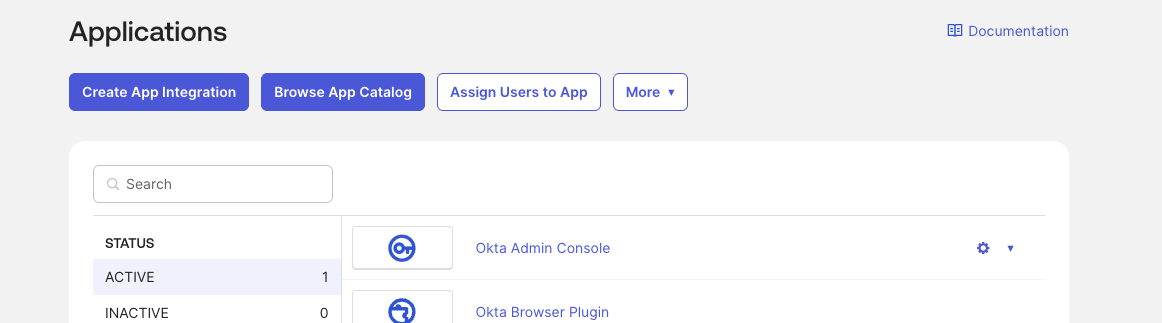
\[Okta] Go to “Applications” and select “Create App Integration”
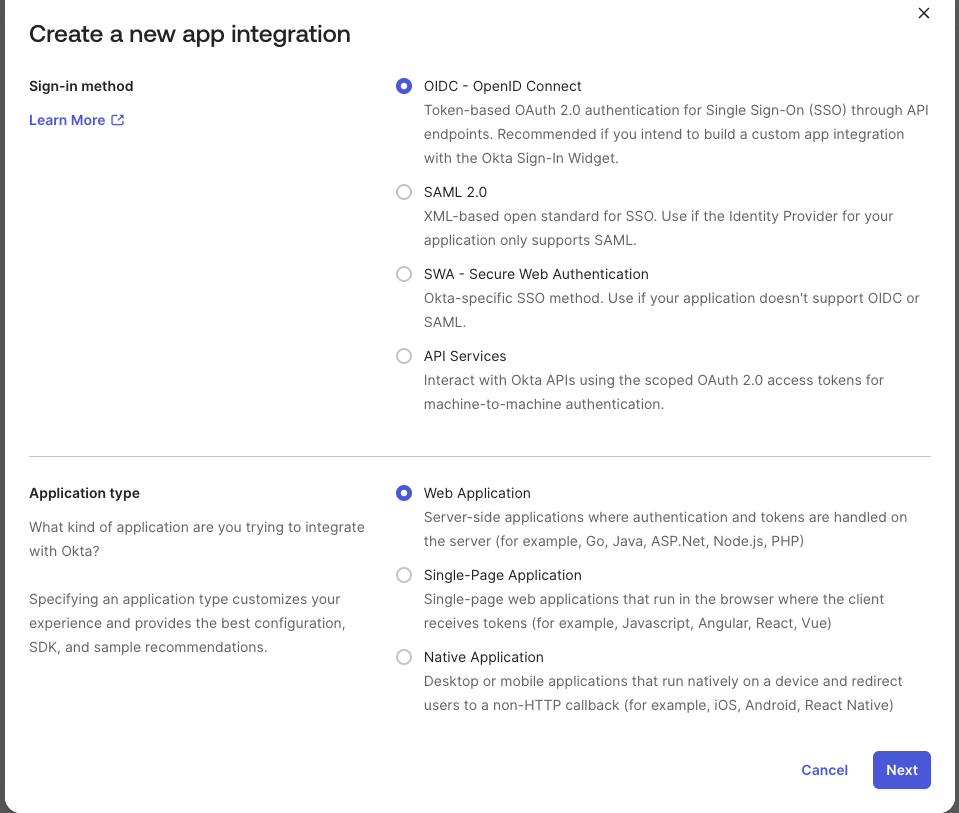
 Select
* “OIDC - OpenID Connect” and “Web Application” and click “Next”
Select
* “OIDC - OpenID Connect” and “Web Application” and click “Next”
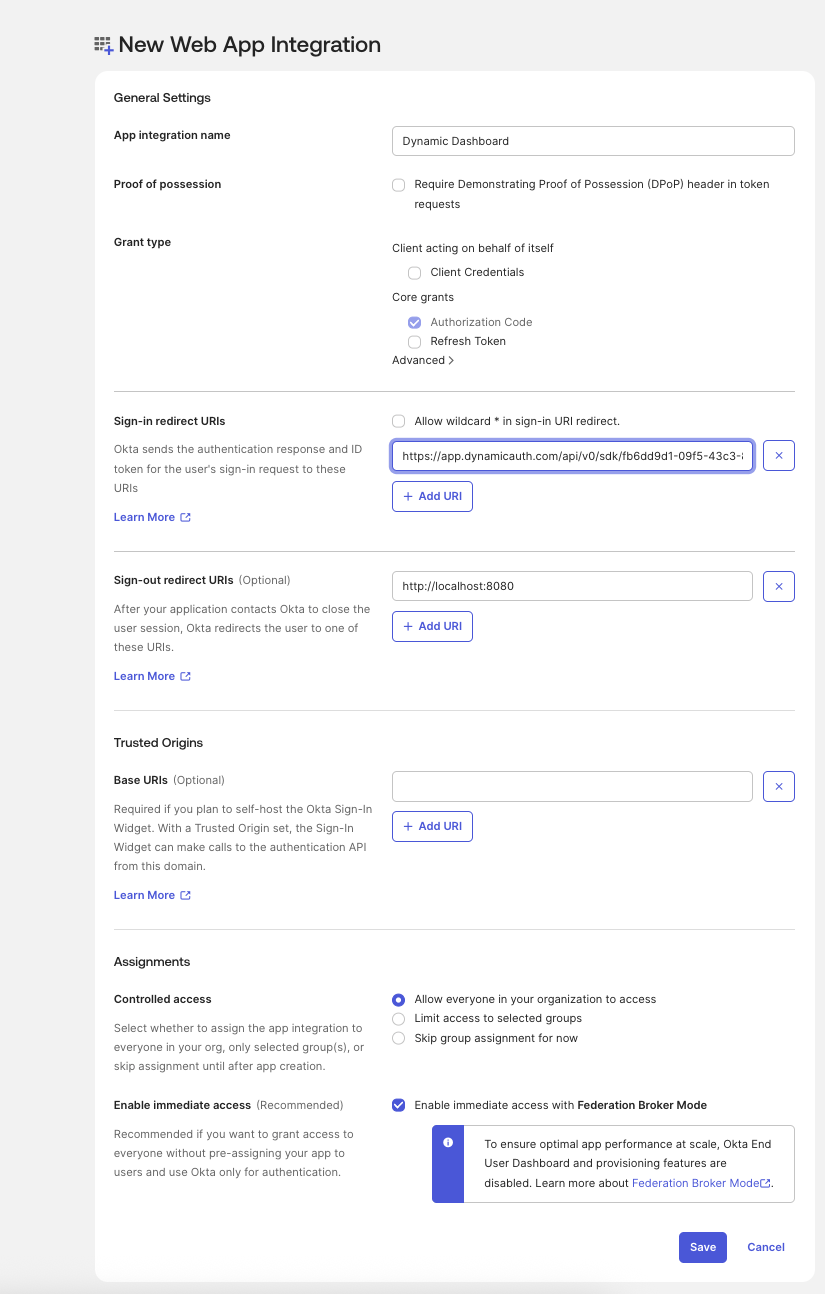
 Fill:
* "App Integration Name": Dynamic Dashboard
* "Sign-in redirect URI": “[https://app.dynamicauth.com/api/v0/sdk/fb6dd9d1-09f5-43c3-8a8c-eab6e44c37f9/providers/okta/redirect”](https://app.dynamicauth.com/api/v0/sdk/fb6dd9d1-09f5-43c3-8a8c-eab6e44c37f9/providers/okta/redirect”)
* "Assignments" - Choose the option that suits you best
click "save"
Fill:
* "App Integration Name": Dynamic Dashboard
* "Sign-in redirect URI": “[https://app.dynamicauth.com/api/v0/sdk/fb6dd9d1-09f5-43c3-8a8c-eab6e44c37f9/providers/okta/redirect”](https://app.dynamicauth.com/api/v0/sdk/fb6dd9d1-09f5-43c3-8a8c-eab6e44c37f9/providers/okta/redirect”)
* "Assignments" - Choose the option that suits you best
click "save"
 ### Dynamic Setup
Go to “[https://app.dynamic.xyz/dashboard/admin#security”](https://app.dynamic.xyz/dashboard/admin#security”)
* enable SSO \[If it is disabled, please provide us with your [org ID](https://app.dynamic.xyz/dashboard/developer/api) and we will enable it for you]
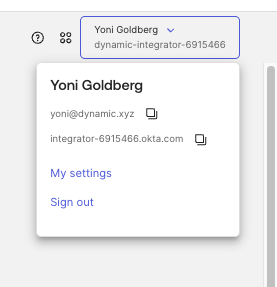
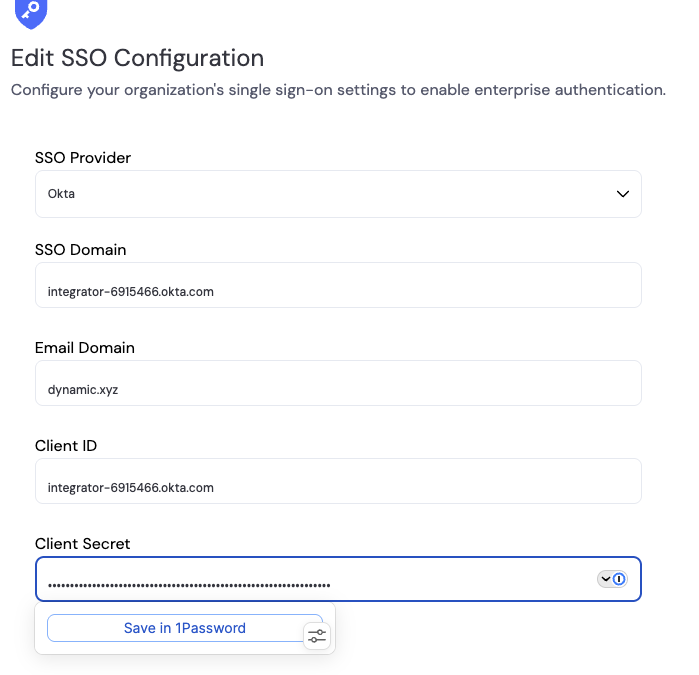
* SSO domain - paste your Okta domain (you can find it on the user’s profile on Okta’s admin)
### Dynamic Setup
Go to “[https://app.dynamic.xyz/dashboard/admin#security”](https://app.dynamic.xyz/dashboard/admin#security”)
* enable SSO \[If it is disabled, please provide us with your [org ID](https://app.dynamic.xyz/dashboard/developer/api) and we will enable it for you]
* SSO domain - paste your Okta domain (you can find it on the user’s profile on Okta’s admin)
 * Email Domain: your organization email domain (`dynamic.xyz`)
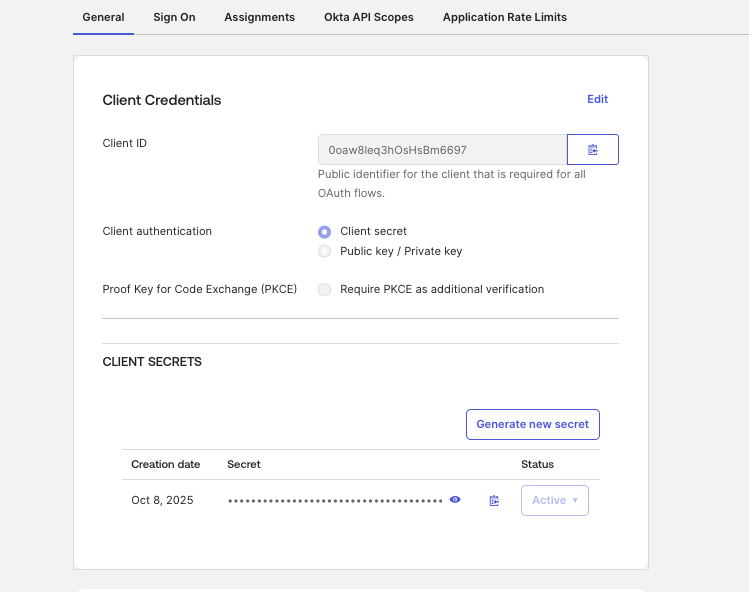
* Client ID and Secret - copy from here:
* Email Domain: your organization email domain (`dynamic.xyz`)
* Client ID and Secret - copy from here:
 Click Save
 After saving the record you will be prompted to complete the domain verification to enforce all emails from your domain to login with Okta
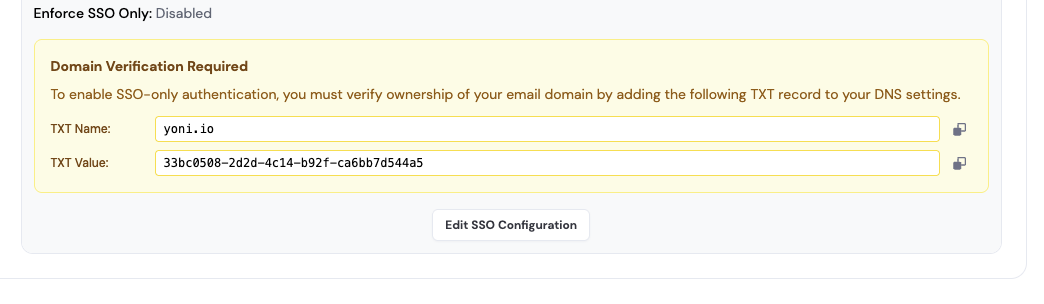 Once you tested the integration you can select Enforce SSO Only.
Invite the users to your org here: [https://app.dynamic.xyz/dashboard/admin#members](https://app.dynamic.xyz/dashboard/admin#members)
Once you tested the integration you can select Enforce SSO Only.
Invite the users to your org here: [https://app.dynamic.xyz/dashboard/admin#members](https://app.dynamic.xyz/dashboard/admin#members)