> ## Documentation Index
> Fetch the complete documentation index at: https://docs.dynamic.xyz/docs/llms.txt
> Use this file to discover all available pages before exploring further.
# Fetch External Wallets to Connect
For new React apps, we recommend the JavaScript SDK with React Hooks (`@dynamic-labs-sdk/react-hooks`) instead of the legacy React SDK documented here. The JS SDK comes with many benefits such as a much smaller bundle size and other optimizations. Use the [React quickstart (JavaScript SDK)](/javascript/reference/react-quickstart) to get started.
This guide is for Using Your UI, as Dynamic UI components already display the wallets for you.
## Wallet keys (when you need them)
Some flows require a stable identifier for a wallet option/provider (for example passing a key into a "connect/link this wallet" call, or rendering a wallet icon). Depending on your SDK, you can get these keys in a few ways:
### 1) From wallet options/providers returned by the SDK
Use [`useWalletOptions`](/react/reference/hooks/wallets/usewalletoptions) and read `walletOptions[].key`.
Using the JavaScript SDK? Use `getAvailableWalletProvidersData()` and read `providers[].key`. See [Getting Available Wallets to Connect](/javascript/reference/wallets/get-available-wallets-to-connect) for more details.
### 2) From Wallet Book (for keys + metadata/icons)
The full wallet list is available from `https://dynamic-static-assets.com/wallet-book/v1/latest/wallet-book.json`.
Each wallet entry includes its `key`, `name`, and branding metadata (useful when rendering icons):
```
"argentx": {
"brand": {
"alt": "ArgentX",
"primaryColor": "#FF875B",
"spriteId": "argentx"
},
"key": "argentx",
"name": "ArgentX"
},
```
### 3) From the dashboard chain pages
Each chain page in the dashboard lists supported wallets and their keys (for example [EVM](https://app.dynamic.xyz/dashboard/chains-and-networks#evm) or [Solana](https://app.dynamic.xyz/dashboard/chains-and-networks#solana)).
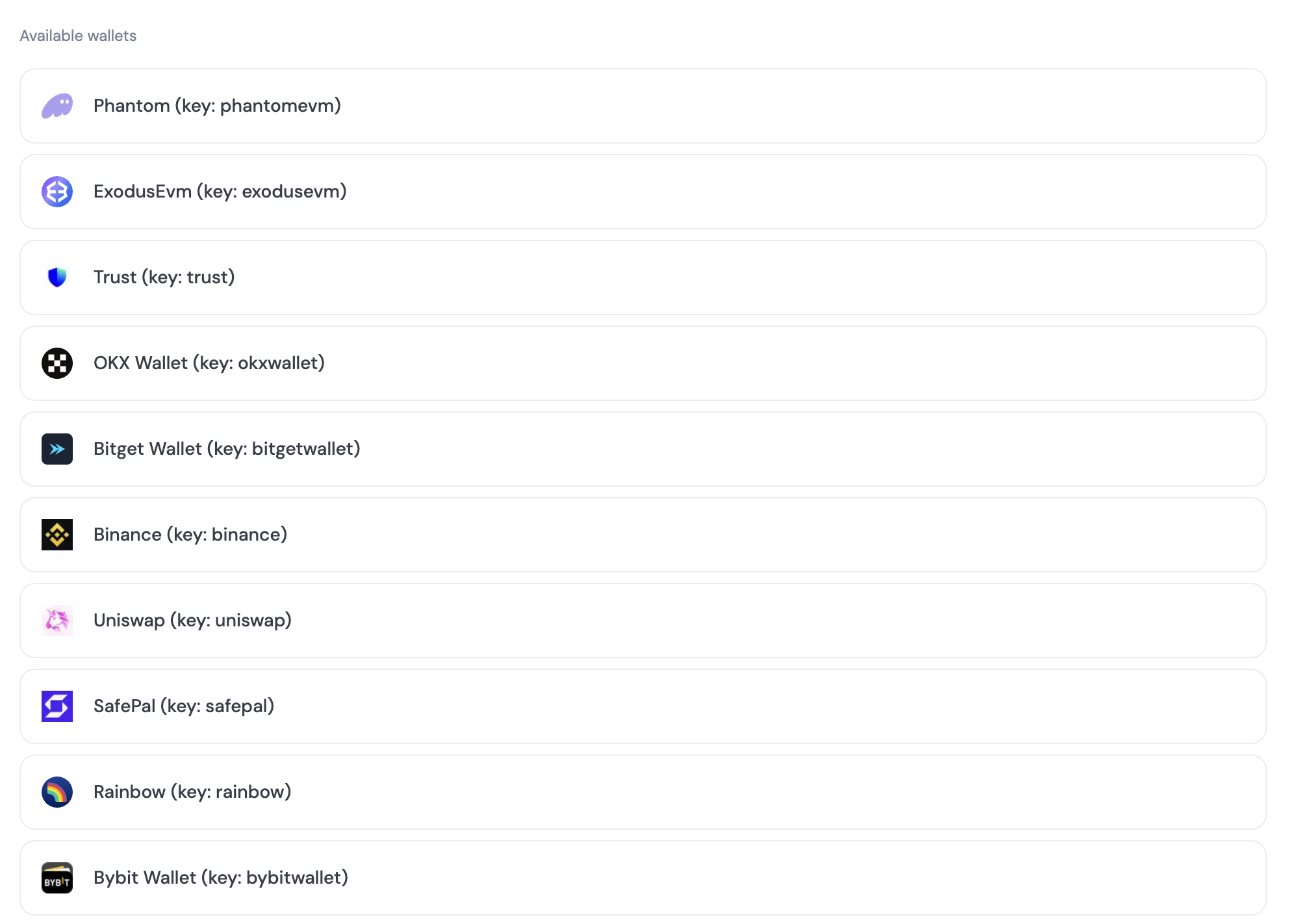 You can find the list of available wallets in the `walletOptions` prop returned by the [useWalletOptions hook](/react/reference/hooks/wallets/usewalletoptions).
When browsing wallets in the Dynamic Widget, you might see labels beside them like "Last Used", "Multichain" or "Recommended".
Last used comes from the "dynamic\_last\_used\_wallet" value in localstorage.
"Multichain" comes from the `chainGroup` node in each wallet (Remember to also add [the WalletConnectors](/react/chains/enabling-chains#enabling-a-chain-network) for each chain).
"Recommended" from [the Recommended Wallets feature](/react/wallets/external-wallets/recommend-wallets).
Use the `@dynamic-labs/wallet-book` library to display a wallet icon using the exported `WalletIcon` component. This component takes a `walletKey` prop, which is the key of the wallet you want to display.
```tsx React theme={"system"}
import { WalletIcon } from '@dynamic-labs/wallet-book'
const WalletIconComponent = () => {
return
}
```
Using the JavaScript SDK? See [Getting Available Wallets to Connect](/javascript/reference/wallets/get-available-wallets-to-connect) and [Connecting and Verifying a Wallet](/javascript/reference/wallets/connect-and-verify-wallet) for the equivalent guides.
You can find the list of available wallets in the `walletOptions` prop returned by the [useWalletOptions hook](/react/reference/hooks/wallets/usewalletoptions).
When browsing wallets in the Dynamic Widget, you might see labels beside them like "Last Used", "Multichain" or "Recommended".
Last used comes from the "dynamic\_last\_used\_wallet" value in localstorage.
"Multichain" comes from the `chainGroup` node in each wallet (Remember to also add [the WalletConnectors](/react/chains/enabling-chains#enabling-a-chain-network) for each chain).
"Recommended" from [the Recommended Wallets feature](/react/wallets/external-wallets/recommend-wallets).
Use the `@dynamic-labs/wallet-book` library to display a wallet icon using the exported `WalletIcon` component. This component takes a `walletKey` prop, which is the key of the wallet you want to display.
```tsx React theme={"system"}
import { WalletIcon } from '@dynamic-labs/wallet-book'
const WalletIconComponent = () => {
return
}
```
Using the JavaScript SDK? See [Getting Available Wallets to Connect](/javascript/reference/wallets/get-available-wallets-to-connect) and [Connecting and Verifying a Wallet](/javascript/reference/wallets/connect-and-verify-wallet) for the equivalent guides.