

Recommended: JavaScript SDK with React Hooks
For new React apps, we recommend the JavaScript SDK with React Hooks (
@dynamic-labs-sdk/react-hooks) instead of the legacy React SDK documented here. The JS SDK comes with many benefits such as a much smaller bundle size and other optimizations. Use the React quickstart (JavaScript SDK) to get started.1. Enable in Dynamic developer console
Navigate to your Dynamic Developer Console and enable Google Drive as a backup option in your embedded wallet settings.2. Enable Google Drive API in Google Cloud Console
You must enable the Google Drive API in your Google Cloud project. If the API is not enabled, users will see an error like:Google Drive API has not been used in project before or it is disabled. Enable it by visiting https://console.developers.google.com/apis/api/drive.googleapis.com/overview then retry.To enable the API:
- Go to the Google Cloud Console
- Select your project
- Navigate to APIs & Services > Library
- Search for “Google Drive API”
- Click Enable
If you recently enabled the API, wait a few minutes for the changes to propagate before retrying.
Required OAuth scopes
When users authenticate with Google Drive, the following scopes are requested: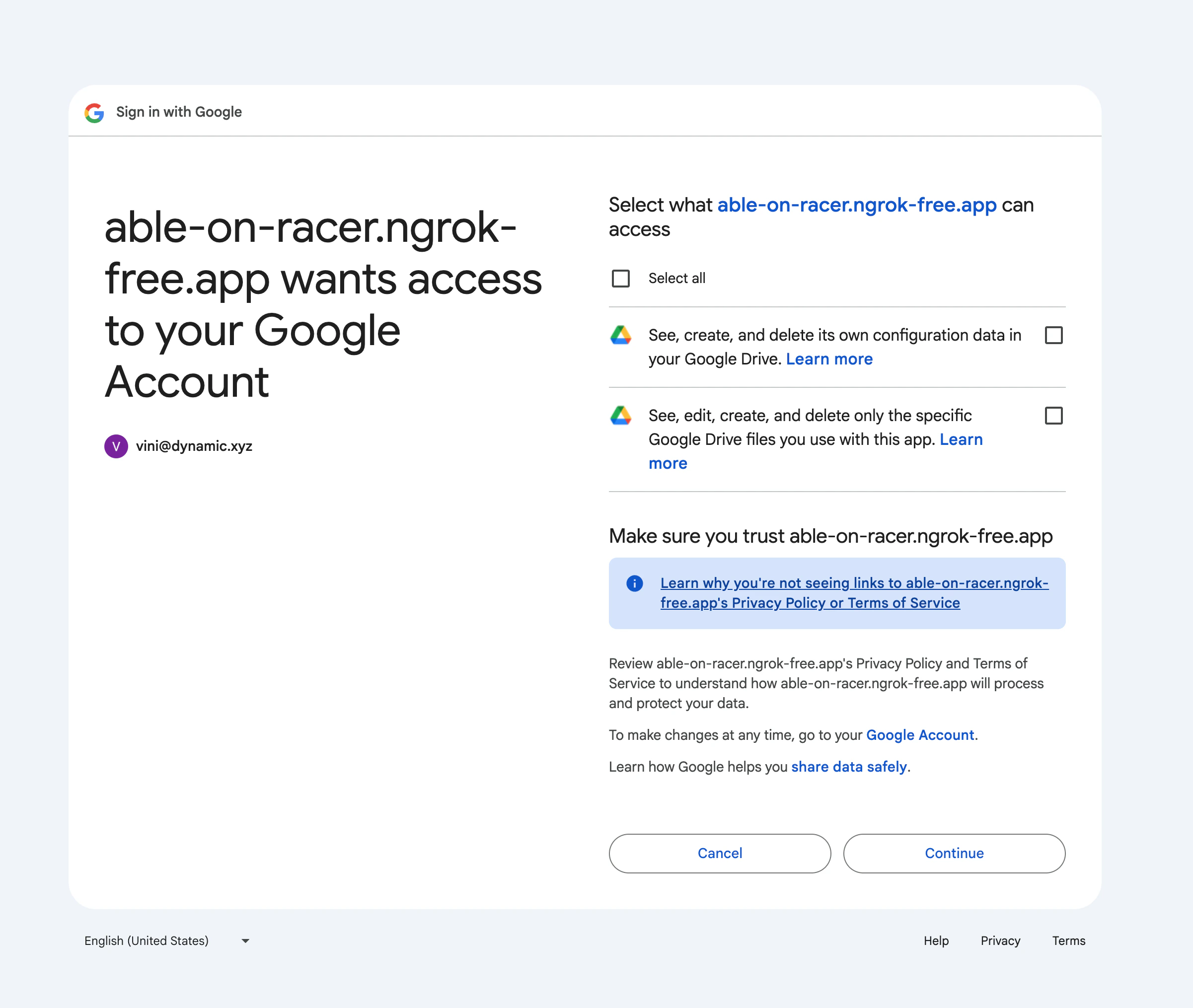
Dual storage locations
The User Share is stored in two locations for redundancy:- App Data folder - A hidden, application-specific storage area in Google Drive. Only your application can access this data, providing secure storage that users cannot accidentally delete.
- Personal Google Drive - A user-visible backup in the user’s Drive. This ensures users have direct access to their backup if needed.
Even though developers can obtain OAuth access tokens for users who authenticate with Google, this does not grant access to the user’s wallet. The key share stored in Google Drive cannot be used by the developer or backend to reconstruct the wallet, and it remains inaccessible without the user’s participation.
Key share encryption
For meaningful protection, we recommend setting a password for the key share during wallet creation or update. This is the security boundary that prevents anyone (including developers) from decrypting the backup. If no password is provided, the key share is still stored in an encrypted format ensuring the key share cannot be used outside the project context.Linking Google account
Users don’t need to sign in with Google to enable this feature. They can link their Google account at any point after wallet creation to enable Google Drive backup. See social linking for more details on how users can connect their Google account.How key share backup works
The share that gets backed up to Google Drive depends on whether delegation is enabled for your project.Google Drive only (2-of-3)
When a user backs up to Google Drive without delegation, a reshare operation creates new key shares:- The client keeps Share B (stored at both Dynamic backend and locally)
- A new Share C is created and uploaded exclusively to Google Drive
Delegation + Google Drive (2-of-3)
When delegation is enabled (either before or after Google Drive), the share distribution changes:- The client’s Share B is backed up to both Dynamic and Google Drive (same share in both locations)
- A new Share C (the delegated share) is sent to the project’s webhook
Programmatic backup management
You can programmatically manage Google Drive backups using theuseWalletBackup hook. This hook allows you to:
- Trigger backup flows programmatically
- Check backup status
- Manage backup configurations
Pre-flight readiness check
Backup uploads to Google Drive can fail if the user’s linked Google account is missing one of the required OAuth scopes (for example, the user previously linked Google for sign-in only and never granted Drive access). Without a pre-flight check, the SDK would still kick off an MPC reshare ceremony before discovering the upload can’t succeed. TheuseGoogleDriveBackupReadiness hook lets you detect — and recover from — these situations before triggering the ceremony. It pairs with useWalletBackup as a two-layer defense:
- Layer 1 — pre-flight readiness: call
check()when the user opens the backup CTA. Ifstatusis'needs-access', callrequestAccess()to re-prompt the Google consent screen, then proceed withbackupWallet(...). - Layer 2 — post-flight recovery: for legacy users where the stored OAuth scopes weren’t recorded, pre-flight cannot tell whether the upload will succeed. Pass
{ throwOnError: true }touseWalletBackupand wrapbackupWallet(...)intry/catch— whenisInsufficientGoogleDriveScopesErrormatches in the catch, callrequestAccess()and retry.
useGoogleDriveBackupReadiness reference for a full code example.
Provide your own Google Drive access token
By default the SDK resolves the Drive access token from the user’s Google account linked in Dynamic. If you manage Google authentication yourself — for example with external auth, where the user’s Google account isn’t linked in Dynamic — you can pass your own Drive-scoped access token tobackupToCloudProvider. When provided, the SDK uses it directly and skips the stored-token lookup, avoiding a second Google consent prompt.
The token must already be granted the required Drive scopes (drive.appdata and drive.file).
backupToCloudProvider reference for the full option list.
Webhook event
When a user successfully backs up their key shares to Google Drive, Dynamic fires thewallet.keyShares.backedUpToExternal webhook event. You can use this to track backup status or trigger follow-up actions in your application. See webhook events for more details.